This guide explains how to update patient demographics on BeatBox v3 for finalised procedures across ECG, Holter, BPM (Blood Pressure Monitoring), and Sleep Study.It applies to procedures that have already been reported and are in Finalised status on BeatBox.If you update patient details before a procedure is finalised, those changes are reflected in the BeatBox record at that time.The procedure PDF updates with the revised information once the reporting doctor has confirmed the procedure.
How to access and edit patient demographics
The steps below are common to all procedure types.1. Log in to BeatBox -
https://www.beatbox.cloud/2. Locate the desired patient or procedure using the Search Box in the top right.3. Click the ellipsis icon in the Actions column, then select Details to open the expanded patient details pop-up.
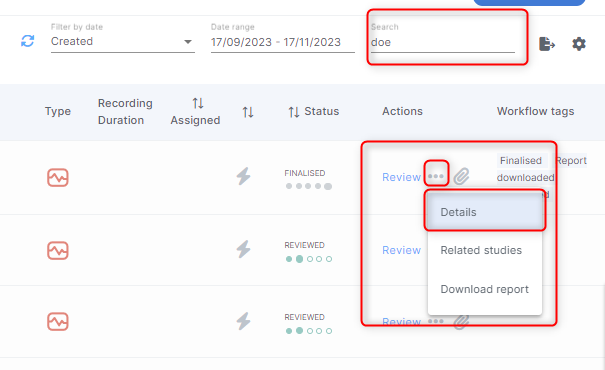
4. Click Edit on the patient details pop-up.
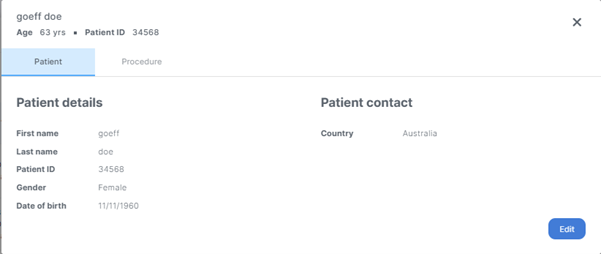
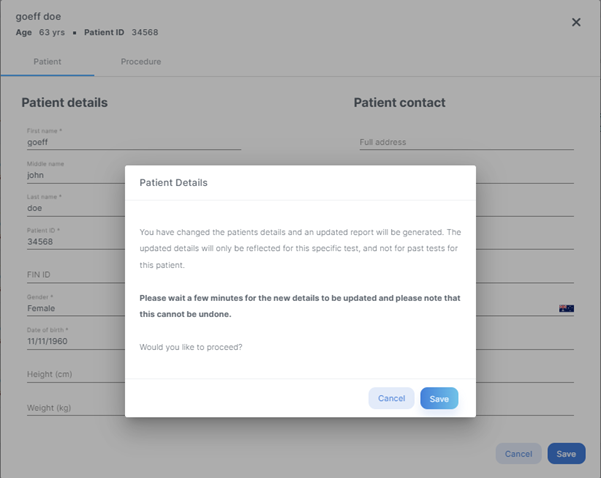
5. Edit the patient details as required and click Save.5a. If you edit Patient First name, Last name, or Patient (Lab) ID, the following message appears when you click Save. Please read the message carefully before you proceed to Save the changes.
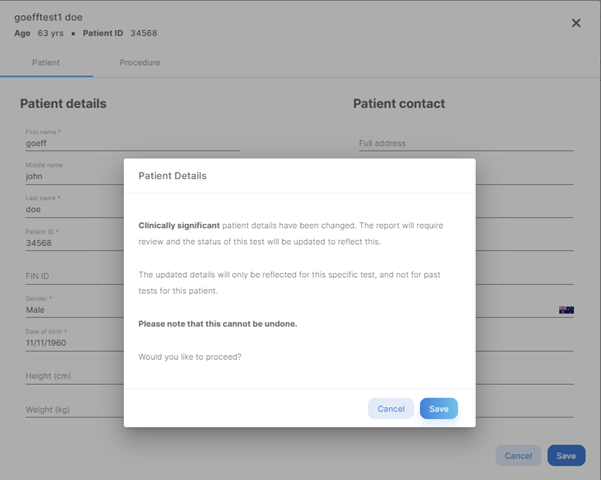
5b. If you edit Patient Gender or Patient Date of Birth (DOB), the following message appears when you click Save. Please read the message carefully before you proceed to Save the changes.Important Note: Since this is a clinically significant change, the report will require a review. The status of the report will be updated to reflect this. When the CardioScan team has completed reviewing this report, the status will update to Finalised on BeatBox.
ECG
For ECG procedures, the general workflow above applies when updating patient demographics after finalisation.Changes to patient identity fields such as first name, last name, or Patient (Lab) ID may prompt a confirmation message before saving.Changes to Patient Gender or Patient Date of Birth (DOB) are clinically significant and will trigger a review of the report.
Holter
For Holter procedures, the same general workflow applies when updating patient demographics after finalisation.Changes to patient identity fields such as first name, last name, or Patient (Lab) ID may prompt a confirmation message before saving.Changes to Patient Gender or Patient Date of Birth (DOB) are clinically significant and will trigger a review of the report.
BPM (Blood Pressure Monitoring)
For BPM procedures, the same general workflow applies when updating patient demographics after finalisation.Any clinically significant patient demographic changes must be reviewed before the report can remain Finalised.In particular, changes to Patient Gender or Patient Date of Birth (DOB) will trigger a review and the report status will update accordingly until the CardioScan team completes the review.
Sleep Study
For Sleep Study procedures, the same general workflow applies when updating patient demographics after finalisation.Any clinically significant patient demographic changes must be reviewed before the report can remain Finalised.In particular, changes to Patient Gender or Patient Date of Birth (DOB) will trigger a review and the report status will update accordingly until the CardioScan team completes the review.
Clinically significant changes and report status
The table below summarises the field changes that are considered clinically significant and what happens to the report status.Procedure typeClinically significant field changesWhat happens to the reportECGPatient Gender, Patient Date of Birth (DOB)The report requires review and the status is updated until the review is completed.HolterPatient Gender, Patient Date of Birth (DOB)The report requires review and the status is updated until the review is completed.BPM (Blood Pressure Monitoring)Patient Gender, Patient Date of Birth (DOB)The report requires review and the status is updated until the review is completed.Sleep StudyPatient Gender, Patient Date of Birth (DOB)The report requires review and the status is updated until the review is completed.